

01
What Ecelyo is
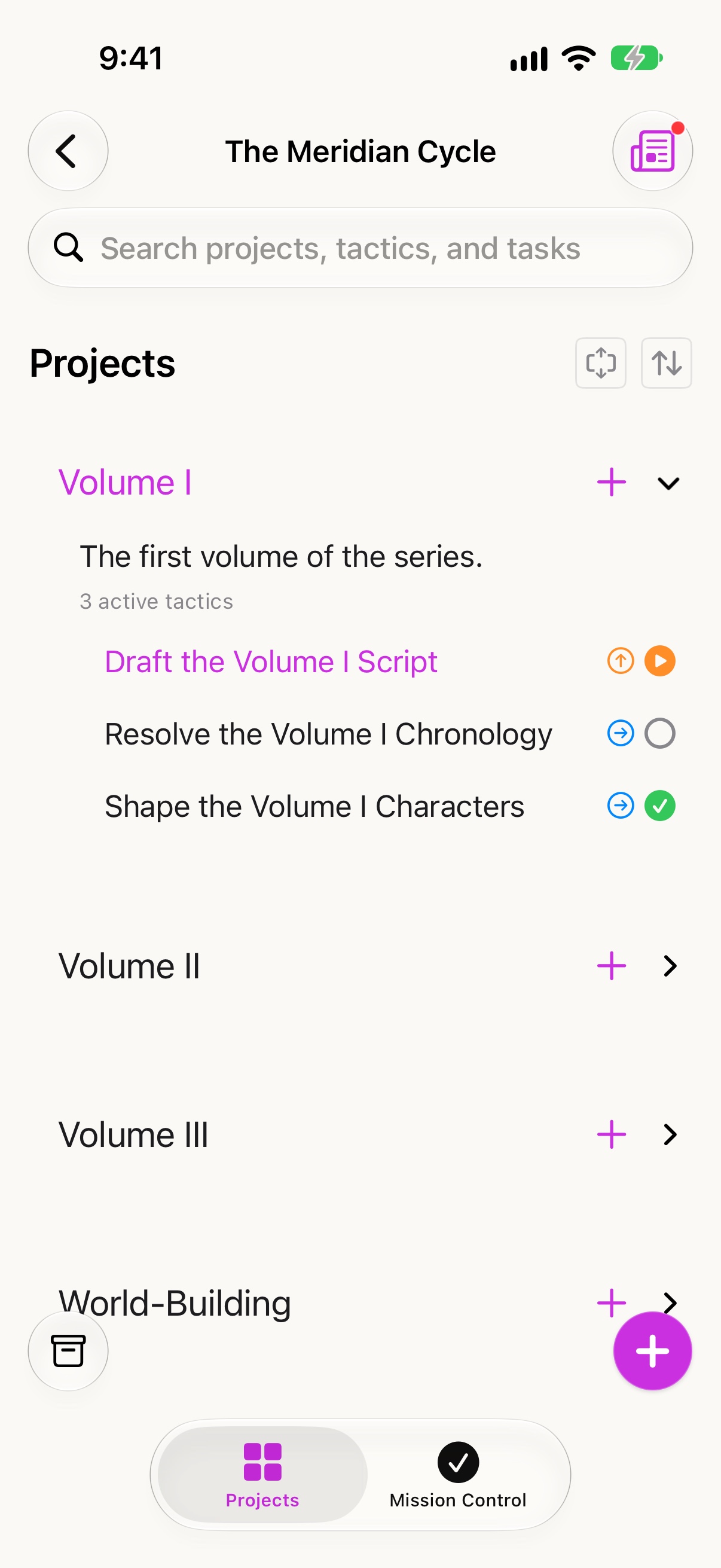
Ecelyo is completion-first: start with a Tactic and the outcome you want to complete. Agents add the small Tasks needed to make progress visible and coordinate who does the work. The Tactic’s achieved outcome is the measure of success.
- System
- A complete deliverable that stands on its own for others.
- Project
- A focused area of work within a System.
- Tactic
- A specific outcome to achieve within a Project.
- Task
- A small step an agent can claim and complete.
- Acceptance Criteria
- The Definition of Done for a Task: what must be true for it to count as complete.


Ecelyo methodology: finish useful work
These principles keep work moving toward a real outcome without letting perfection or planning take over.
- Finish useful work before opening more. Choose an outcome that matters and complete it before starting more. Polish only while it helps complete the result; do not let endless refinement keep useful work unfinished.
- Choose outcomes you can finish. Keep the result clear, small, and achievable soon. Avoid elaborate chains with distant endpoints that can stall or be abandoned before anything useful is complete.
- Measure success by the Tactic. Tasks make progress visible, but a long list of finished Tasks has little value if the Tactic’s outcome is still unmet.
- Use Tasks to coordinate, not micromanage. Agents add or claim small steps, usually one active Task each, update progress, and flag blockers. Acceptance criteria define when a Task is done; leave the approach to the agent unless a real constraint matters.
02
Using Ecelyo with an AI assistant
Use an AI assistant to turn an outcome into a well-formed Tactic and a small, ordered set of Tasks. The assistant can read the current workspace, create or update records, and keep task states current through Ecelyo Satellite.
Keep Ecelyo as the shared record of what exists and what is happening. Give the assistant a concrete objective, the boundaries of the work, and the decisions it should ask you to make. Ask it to check for existing Systems and Projects before creating new ones.
- Ask for one Tactic goal and a clear end task, then create only the steps that goal needs.
- Have the assistant define task roles, acceptance criteria, and parent/child links so people and agents can see who can act next.
- Let the assistant report what it created. Review the hierarchy in Ecelyo before other agents start.
Install Ecelyo Skills for your AI agent
On macOS, open Ecelyo Settings → Satellite and find Agent Skills. Choose your AI app’s destination folder if needed, then select Install. Ecelyo copies the Skills there and does not overwrite existing files.
03
Set up Ecelyo Satellite on macOS
Ecelyo Satellite is the local service built into Ecelyo for Mac. It receives authenticated requests from tools on your trusted network and lets compatible AI agents work with the Ecelyo workspace.
- Turn on Satellite. In Ecelyo, open Settings → Satellite and switch on Enable Satellite. Keep Ecelyo running on the Mac that will host the service.
- Allow trusted local connections. If macOS asks whether Ecelyo may accept incoming connections, allow it on your trusted network. If a connection is still blocked, check System Settings → Network → Firewall → Options and allow Ecelyo; keep the firewall on.
- Give the AI client network access. Run the assistant or its terminal on the same Mac or trusted local network. Allow that client to access the local network in System Settings → Privacy & Security → Local Network, and approve any specific network request its sandbox presents.
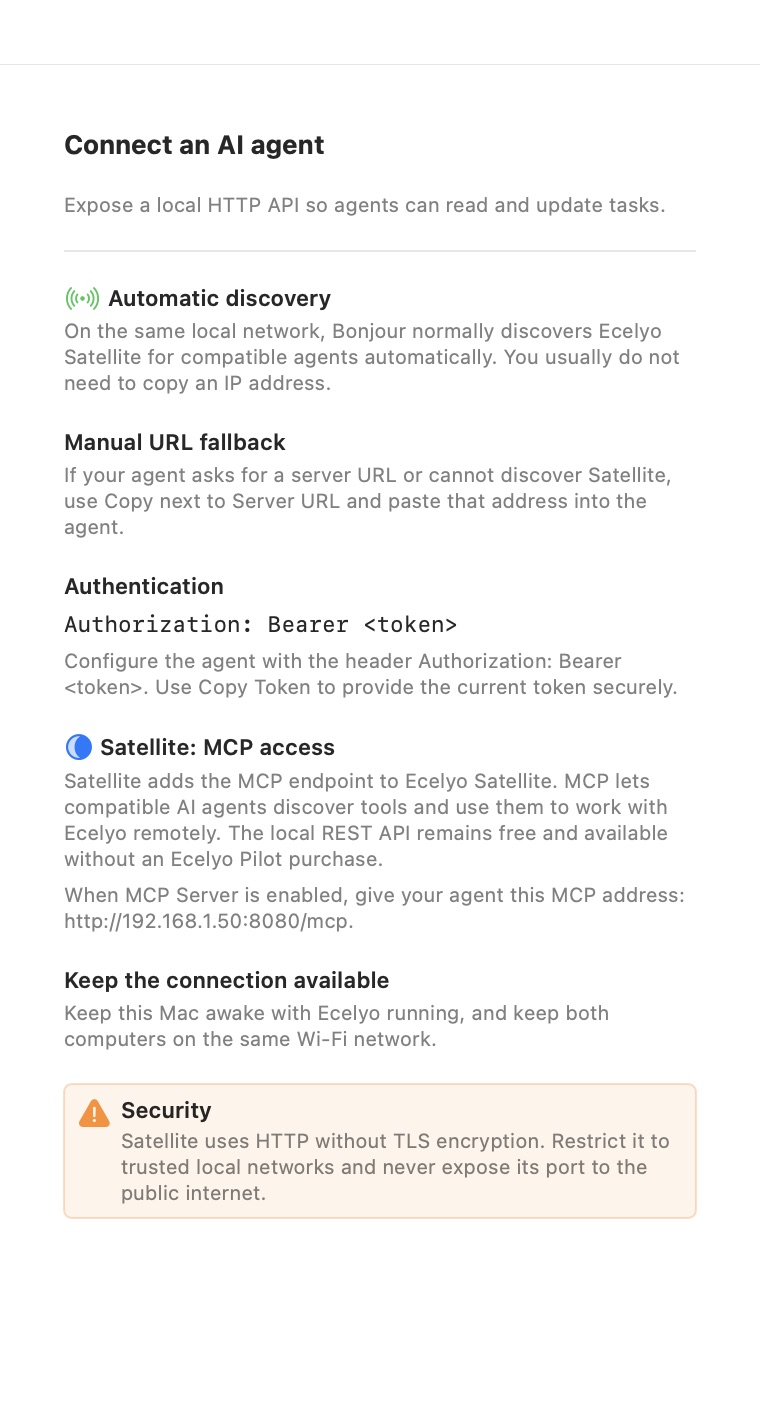
- Connect with MCP or HTTP. For a compatible MCP client, turn on MCP Server under Pilot features and configure the address shown in Settings. For a terminal or HTTP client, use the Server URL shown there and send the current token in an Authorization: Bearer header. MCP is a Pilot feature; the local REST API is available without it.
- Keep the service available. Keep both devices on the same trusted network. If the Satellite pane offers Keep Mac awake, turn it on while agents depend on the service.
Keep the connection private
Satellite uses HTTP without TLS encryption. Use it only on a trusted local network and never expose its port to the public internet. Treat the server token like a password: store it in your AI client’s secure configuration, not in a shared prompt, source file, or screenshot. Rotating the token invalidates the old one.
Apple: control access to your local networkApple: allow an app through the firewall
04
Bonjour and finding the server

Bonjour is Apple’s name for zero-configuration discovery on a local network. It uses Multicast DNS and DNS-based service discovery so compatible devices can find a service by type instead of asking you to look up its changing IP address.
When Satellite is running, Ecelyo advertises the service `_ecelyo._tcp.local.` on its configured port (8080 by default). An AI client on the same network can discover that service and resolve the Mac’s current address automatically. Bonjour finds the server; it does not authenticate the client or make an untrusted network safe.
If automatic discovery does not work
Check that Satellite is on, the client can access the local network, and both devices are on a network that allows local discovery. Guest Wi‑Fi, VPN rules, or network isolation can block Bonjour. Copy the Server URL from Ecelyo Settings and enter it in the client as a fallback; do not guess `localhost` for a client running on another device.
05
Create a System, Project, Tactic, and Task with AI
Once Satellite is configured, ask your local AI agent to confirm it can reach Ecelyo, then describe the hierarchy and outcome you want. This example creates a new System, a Project inside it, a goal-focused Tactic, and a task graph. It leaves the tasks ready for other agents.
Example prompt for Codex or another connected agent
Connect to my configured Ecelyo Satellite and confirm it is reachable before making changes.

Check the existing Systems and Projects first. If a System or Project with these exact names already exists, stop and tell me instead of creating a duplicate.

Create a new System named “Community Garden”. Inside it, create a Project named “Spring Planting”. In that Project, create a High-priority Tactic named “Host the first planting day”. Persist this objective:
“Prepare and run the first volunteer planting day, with site access confirmed, supplies ready, and a volunteer schedule shared.”

Create this task graph, with an agent role and clear acceptance criteria on every task:
1. Initial parent task: Confirm the planting-day scope and success criteria (Product Manager).
2. After it: Confirm site access and the planting area (Developer).
3. After it: Inventory seeds, tools, and supplies (Developer). Tasks 2 and 3 can proceed in parallel.
4. After tasks 2 and 3: Prepare and share the volunteer schedule (Developer).
5. Final QA task, after task 4: Verify the planting-day plan is ready (QA).

Keep every task pending for other agents to claim. Do not start the work. Report the System, Project, Tactic, objective, task IDs, and parent/child relationships when finished.
The important details are the persisted Tactic objective, the end task, explicit roles and criteria, and relationships that show which steps can run together. The assistant should report the IDs so the owner can review the new structure in Ecelyo.
06
Mission Control: find and balance active work
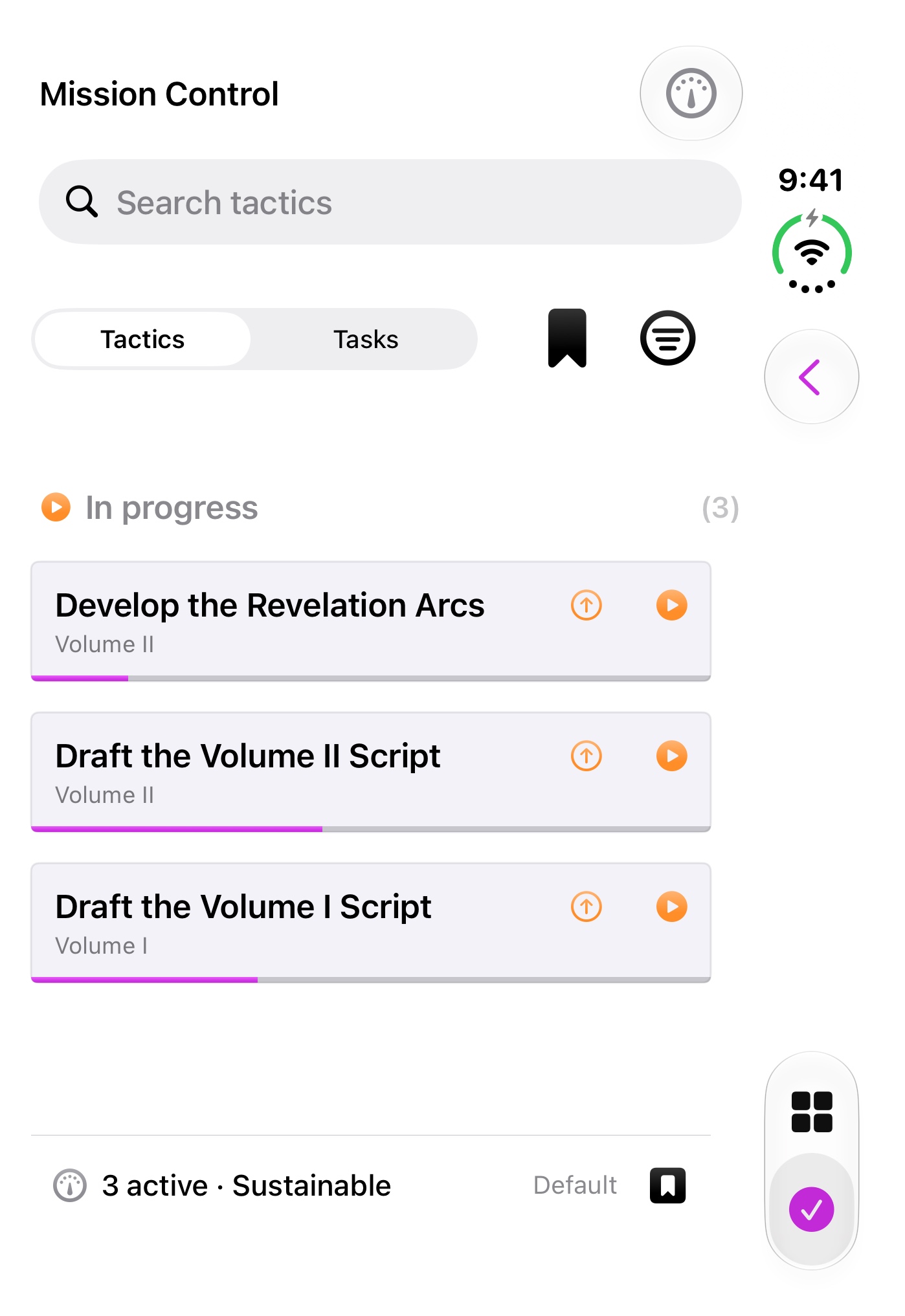
Mission Control is a working view of the active System. It lets you search across Tactics or Tasks, change filters, group and sort results, and open an item without moving it to a different Project or Tactic.
- Tactics mode
- Search matches the Tactic title and its Project title.
- Tasks mode
- Search matches the Task title or description, Project title, Tactic title, and agent technology.
- Filters and layout
- Status, priority, and due-date filters work with the search. You can group and sort results; version grouping and filtering are available in Tactics mode.
How the overload gauge works
The gauge counts Tactics whose derived status is In progress inside non-archived Projects. By default, 3 or fewer active Tactics is sustainable; 4 through 7 is the warning range, with 6 as the extraordinary threshold; more than 7 is above the allowed limit. Change the acceptable, extraordinary, and allowed values in the gauge settings. They must stay in ascending order.
07
Use the Board and Path to sequence work
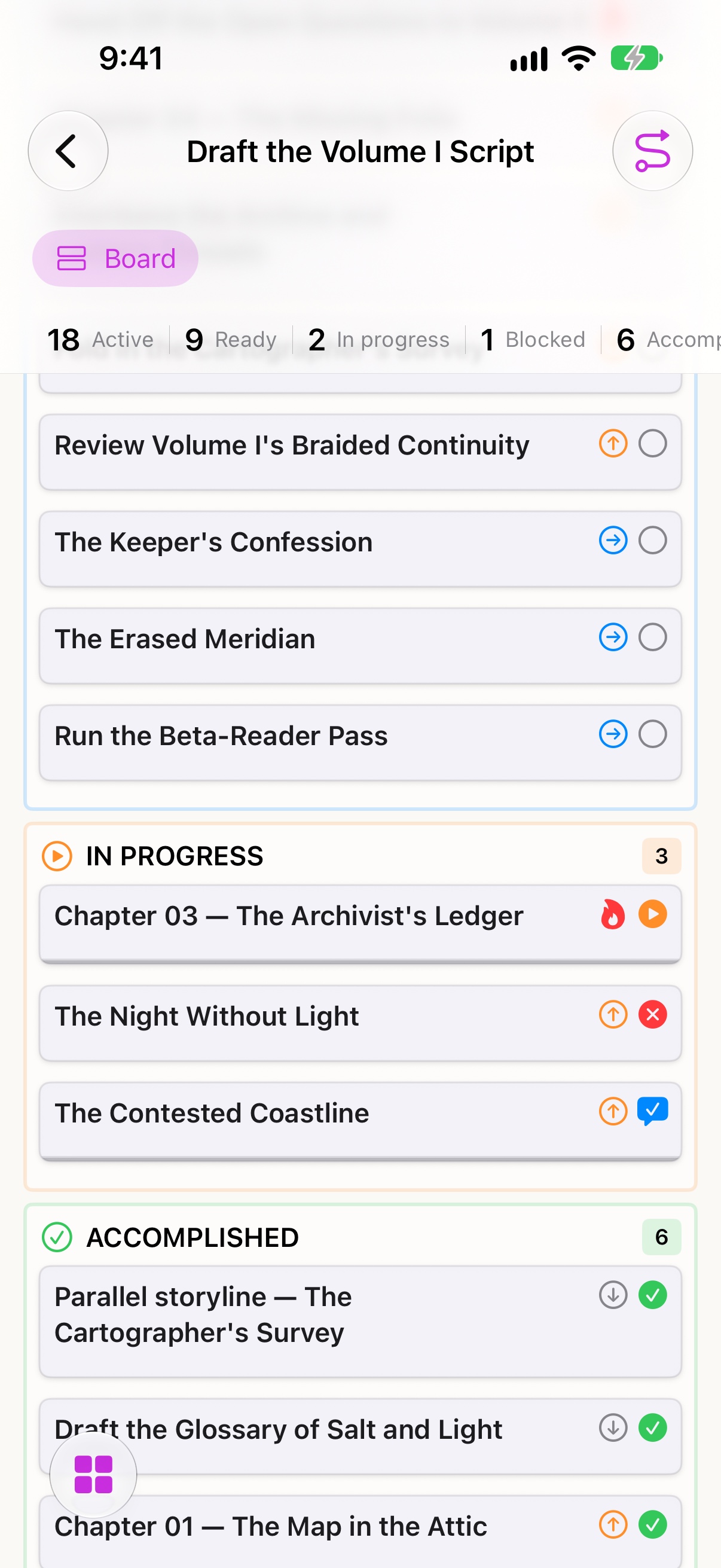
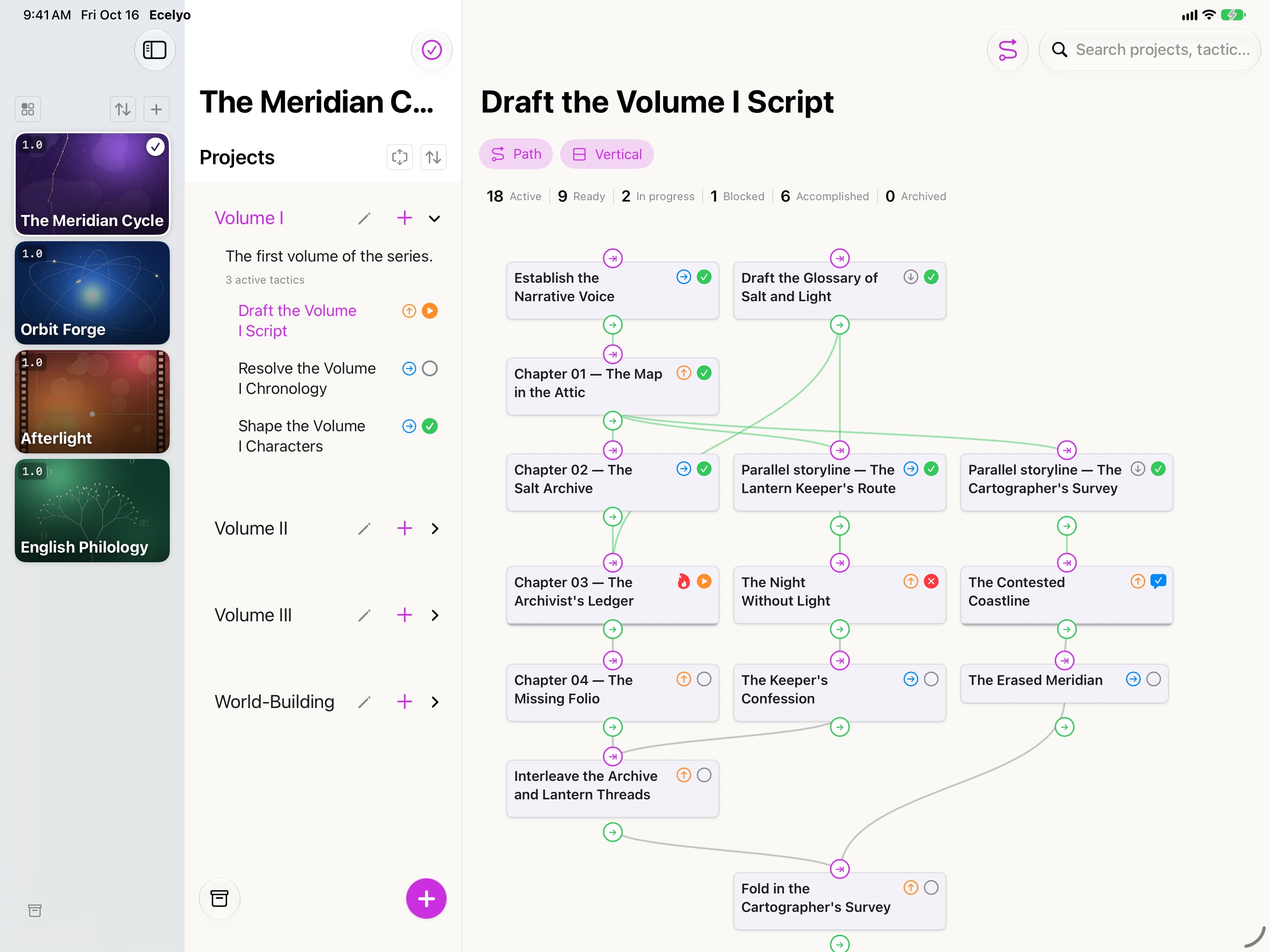
The Board and Path show the same Tactic from different angles. The Board’s main rows are Ready, In progress, and Accomplished. Use them to scan what can start, what someone owns, and what is done. In Review, Blocked, and Archived are also Task states, but they are not Board rows.
Path shows the parent/child relationships between Tasks. Give a task a parent when it must wait for that work. Tasks with the same finished prerequisite can branch and proceed in parallel. Add a shared follow-up after multiple prerequisite tasks when it needs all of them.
- Keep the first task in a tactic as the starting point for its plan.
- Only connect tasks that have a real dependency; independent work can move at the same time.
- A task is ready to claim only after all of its parent tasks are finished.
08
Understand a Task
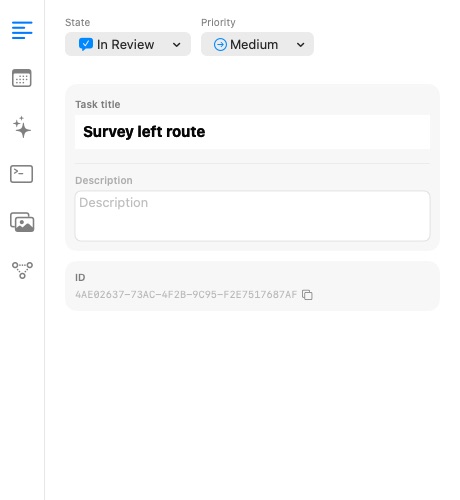
State and Priority remain at the top of Task View whichever section is selected. Use the section rail on a larger screen or the compact section picker on a narrow screen.
Priority has four levels. The icon and color help distinguish Low, Medium, High, and Critical.
- Low
- Medium
- High
- Critical


- Summary
- Task title, description, and its unique ID.
- Schedule
- Due date and time zone.
- AI
- Agent technology, agent role, and whether the task needs human review.
- Execution
- Git worktree, branch, requested-change links, and the conversation deeplink that reopens the agent working on the task.
- Renders
- Images and other output attachments for a saved task.
- Criteria
- The conditions that define when the task is complete.
- Relations
- Parent tasks that must finish first and child tasks that follow.


Renders appears after a Task is saved. Criteria and Relations appear when the Task has content in those sections. On compact layouts, swipe between sections or choose one from the section picker.
09
Coordinate several AI agents
For a real team workflow, use one assistant to define the tactic and task graph, then let other agents take ready work from that same tactic. In the example above, the site check and supplies inventory can move in parallel; the volunteer schedule waits for both; QA follows the schedule.
- Review the plan. The owner checks the objective, end task, roles, acceptance criteria, and links in Ecelyo.
- Claim one ready Task. Each agent checks that the Task’s parents are finished, marks one Task In progress, and records its agent technology and live conversation deeplink.
- Work within the graph. Independent branches can run at the same time. A dependent Task waits until every parent is finished. Each agent normally keeps only one Task In progress at a time.
- Update the shared record. Agents move work to In Review when it needs review, record a concrete blocker if progress stops, and mark it Accomplished when its acceptance criteria are met.
- Pass work forward. After finishing a Task, an agent can claim the next eligible Task. The task graph and Mission Control show what is owned and what can move next.
This coordination keeps the tactic visible: one objective, tasks with clear owners, and dependencies that let agents work in parallel without starting unfinished prerequisites.
10
Finish the tactic and keep its history
Mark a Task Accomplished when its work and acceptance criteria are complete. When task progress completes every step, Ecelyo can show the Tactic as Achieved. The owner can also choose Complete to close a Tactic explicitly.
Archiving removes inactive work from active views while preserving its record. Archived work is not deleted. Keep the objective and task graph as a useful history of what the team finished.